

Adding dimensions to your project
Read more about adding dimensions to your project in our docs here. For a dimension to appear in Lightdash, you just need to declare it in your dbt model’s YAML file.Dimension configuration
To customize the dimension, you can do it in your dbt model’s YAML file under themeta tag. The syntax depends on your dbt version.
If you want to declare multiple dimensions based on the same column, check additional dimensions section.
- dbt v1.9 and earlier
- dbt v1.10+ and Fusion
- Lightdash YAML
| Property | Required | Value | Description |
|---|---|---|---|
| label | No | string | Custom label. If you set this property, this is what you’ll see in Lightdash instead of the dimension name. |
| type | No | Dimension type | The dimension type is automatically pulled from your table schemas in Lightdash but you can override the type using this property. |
| description | No | string | Description of the dimension in Lightdash. You can use this to override the description you have for the dimension in dbt. |
| sql | No | string | Custom SQL applied to the column used to define the dimension. |
| time_intervals | No | ’default’ or OFF or an array[] containing elements of date, numeric, string options, or custom granularity names | ’default’ (or not setting the time_intervals property) will be converted into [‘DAY’, ‘WEEK’, ‘MONTH’, ‘QUARTER’, ‘YEAR’] for dates and [‘RAW’, ‘DAY’, ‘WEEK’, ‘MONTH’, ‘QUARTER’, ‘YEAR’] for timestamps; if you want no time intervals set ‘OFF’. You can also include custom granularity names defined in lightdash.config.yml. |
| hidden | No | boolean | If set to true, the dimension is hidden from Lightdash. By default, this is set to false if you don’t include this property. Hidden dimensions are also excluded from drilldowns (View underlying data). |
| compact | No | string | This option will compact the number value (e.g. 1,500 to 1.50K). Currently supports one of the following: [‘thousands’, ‘millions’, ‘billions’, ‘trillions’, ‘kilobytes’, ‘megabytes’, ‘gigabytes’, ‘terabytes’, ‘petabytes’, ‘kibibytes’, ‘mebibytes’, ‘gibibytes’, ‘tebibytes’, ‘pebibytes’] |
| format | No | string | This option will format the output value on the results table and CSV export. Supports spreadsheet-style formatting (e.g. #,##0.00). Use this website to help build your custom format. |
| groups | No | string or string[] | If you set this property, the dimension will be grouped in the sidebar with other dimensions with the same group label. |
| urls | No | Array of url, label | Adding urls to a dimension allows your users to click dimension values in the UI and take actions, like opening an external tool with a url, or open at a website. You can use liquid templates to customise the link based on the value of the dimension. |
| richText | No | string | Rich text template for displaying formatted content in table cells. Supports Markdown, HTML, and LiquidJS templating. |
| required_attributes | No | Object with user_attribute, value | Limits access to users with those attributes (AND logic - all must match) |
| any_attributes | No | Object with user_attribute, value | Limits access to users with those attributes (OR logic - at least one must match) |
| colors | No | Object with value, color | Color for the values in the chart |
| image | No | Object with url | [WIP] Display images in table cells using URL templates. Supports LiquidJS templating for dynamic URLs. |
| case_sensitive | No | boolean | If set to false, string filters on this dimension will be case insensitive. Defaults to true. Overrides explore-level setting. |
Type
The types of your dimensions are pulled from your data warehouse, automatically. You can override these types using thetype meta tag in your .yml file. If you run lightdash generate to generate your .yml files, then Lightdash will add the type from your data warehouse to your .yml files automatically.
- dbt v1.9 and earlier
- dbt v1.10+ and Fusion
- Lightdash YAML
| Dimension Types |
|---|
| string |
| number |
| timestamp |
| date |
| boolean |
Description
Column descriptions in your YAML file are automatically pulled into Lightdash and you can spot them if you hover over the dimension name.
Quotes for escaping
When you surround text with double or single quotes it will escape the text between so that any special characters recognized by YAML will still pass through to the Lightdash UI.Greater than symbol for folded text blocks
When you use>- it allows you to type descriptions that are multiple lines long in the YAML file, but the text will be combined into a single line when parsed. The lightdash generate command will automatically add this to keep YAML files easy to read.
This description in YAML:
Vertical bar for preserving line breaks
If you need line breaks to stay in place when they show up in the Lightdash UI, you can use a| character like this:
Using dbt doc blocks
You can also use dbt docs blocks in descriptions, more on that here.Format
You can use theformat parameter to have your dimensions show in a particular format in Lightdash. Lightdash supports spreadsheet-style format expressions for all dimension types.
To help you build your format expression, we recommend using https://customformats.com/.
- dbt v1.9 and earlier
- dbt v1.10+ and Fusion
- Lightdash YAML
Example format expressions:
| Description | Format Expression | Raw Value | Formatted Output |
|---|---|---|---|
| Adds “km” suffix to the value | #,##0.00" km" | 100000.00 | 100,000.00 km |
| 15000.25 | 15,000.25 km | ||
| 500 | 500.00 km | ||
| Format date with 12-hour clock | m/d/yyyy h:mm AM/PM | 2023-09-05T15:45:00Z | 9/5/2023 3:45 PM |
| 2024-01-20T08:30:00Z | 1/20/2024 8:30 AM | ||
| Display the full name of the day | dddd | 2023-09-05T15:45:00Z | Tuesday |
| 2024-01-20T08:30:00Z | Saturday | ||
| Format positive, negative, and zero values | "⬆️ "0;"⬇️ "0;0 | -500 | ⬇️ 500 |
| 200 | ⬆️ 200 | ||
| 0 | 0 | ||
| Text formatting | "Delivered in "@ | 2 weeks | Delivered in 2 weeks |
| 18 hours | Delivered in 18 hours | ||
| Percentage formatting | #,##0.00% | 0.6758 | 67.58% |
| 0.1 | 10.00% | ||
| 0.002 | 0.20% | ||
| No formatting | 0 | 12345232 | 12345232 |
| 56.7856 | 57 | ||
| Currency formatting | [$$]#,##0.00 | 15430.75436 | $15,430.75 |
| 15430.75436 | $15,430.75 | ||
| Compact currency in thousands | [$$]#,##0,"K" | 15430.75436 | $15K |
| 15430.75436 | $15.43K | ||
| Compact currency in millions | [$$]#,##0.00,,"M" | 13334567 | $13.33M |
| 120000000 | $120.00M |
(Legacy) format and round options
(Legacy) format and round options
Spreadsheet-style format expressions are the recommended way of adding formatting to your metrics in Lightdash. There are legacy formatting options, listed below, which are less flexible than the spreadsheet-style formatting.These are the options:
If you use both legacy and spreadsheet-style formatting options for a single dimension, Lightdash will ignore the legacy
format and round options and only apply the spreadsheet-style formatting expression.Format (legacy)
- dbt v1.9 and earlier
- dbt v1.10+ and Fusion
- Lightdash YAML
| Option | Equivalent format expression | Description | Raw value | Displayed value |
|---|---|---|---|---|
| km | ’#,##0.00” km“‘ | Adds the suffix km to your value | 10 | 10 km |
| mi | ’#,##0.00” mi“‘ | Adds the suffix mile to your value | 10 | 10 mi |
| usd | ’[$$]#,##0.00’ | Adds the $ symbol to your number value | 10 | $10.00 |
| gbp | ’[$£]#,##0.00’ | Adds the £ symbol to your number value | 10 | £10.00 |
| eur | ’[$€]#,##0.00’ | Adds the € symbol to your number value | 10 | €10.00 |
| jpy | ’[$¥]#,##0.00’ | Adds the ¥ symbol to your number value | 10 | ¥10 |
| percent | ’#,##0.00%‘ | Adds the % symbol and multiplies your value by 100 | 0.1 | %10 |
| id | ’0’ | Removes commas and spaces from number or string types so that they appear like IDs. | 12389572 | 12389572 |
Round (legacy)
You can round values to appear with a certain number of decimal points.- dbt v1.9 and earlier
- dbt v1.10+ and Fusion
- Lightdash YAML
Compact
You can compact values in your YAML. For example, if I wanted all of my revenue values to be shown in thousands (e.g.1,500 appears as 1.50K), then I would write something like this in my .yml:
- dbt v1.9 and earlier
- dbt v1.10+ and Fusion
- Lightdash YAML
| Value | Alias | Equivalent format expression | Example output |
|---|---|---|---|
| thousands | ”K” and “thousand” | ’#,##0,” K”’ or ’#,##0.00,” K“‘ | 1K |
| millions | ”M” and “million” | ’#,##0,,” M”’ or ’#,##0.00,,” M“‘ | 1M |
| billions | ”B” and “billion” | ’#,##0,,,” B”’ or ’#,##0.00,,,” B“‘ | 1B |
| trillions | ”T” and “trillion” | ’#,##0,,,,” T”’ or ’#,##0.00,,,,” T“‘ | 1T |
| kilobytes | ”KB” and “kilobyte” | 1KB | |
| megabytes | ”MB” and “megabyte” | 1MB | |
| gigabytes | ”GB” and “gigabyte” | 1GB | |
| terabytes | ”TB” and “terabyte” | 1TB | |
| petabytes | ”PB” and “petabyte” | 1PB | |
| kibibytes | ”KiB” and “kibibyte” | 1KiB | |
| mebibytes | ”MiB” and “mebibyte” | 1MiB | |
| gibibytes | ”GiB” and “gibibyte” | 1GiB | |
| tebibytes | ”TiB” and “tebibyte” | 1TiB | |
| pebibytes | ”PiB” and “pebibyte” | 1PiB |
Time intervals
Lightdash automatically adds intervals for dimensions that are timestamps or dates, so you don’t have to! For example, here we have the timestamp dimensioncreated defined in our dbt project:
created appears in our Lightdash project:
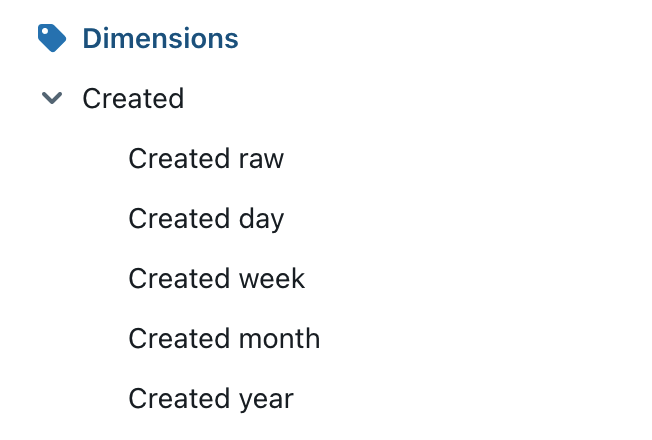
Formatting added to a date or timestamp dimension will be applied to all of the time intervals for that dimension.If you want to apply different formats for different time intervals, we recommend creating additional dimensions for time intervals where you want to customize the format.
Default time intervals
The default time intervals that Lightdash adds are… Fordate type:
timestamp type:
Disable time intervals
If you want to turn off time intervals for a dimension, you set thetime_intervals property to OFF.
In this example, created would now appear as a single, timestamp dimension without a drop-down list of time intervals in Lightdash:
- dbt v1.9 and earlier
- dbt v1.10+ and Fusion
- Lightdash YAML

To customize the time intervals for a dimension, you can use the time_intervals parameter.
If you specify time intervals manually, then this overrides the default time intervals used by Lightdash.
- dbt v1.9 and earlier
- dbt v1.10+ and Fusion
- Lightdash YAML
Date options
| Option | Description | Type | Displayed value | Notes |
|---|---|---|---|---|
| RAW | Original value | Date / DateTime | 2019-01-01 / 2019-01-01, 09:30:30:300 UTC | |
| YEAR | Date truncated to the nearest year | Date | 2019 | |
| QUARTER | Date truncated to the nearest quarter | Date | 2019-Q1 | |
| MONTH | Date truncated to the nearest month | Date | 2019-01-01 | |
| WEEK | Date truncated to the nearest week | Date | 2019-01-01 | The start of the week depends on your warehouse configuration |
| DAY | Date truncated to the nearest day | Date | 2019-01-01 | |
| HOUR | Datetime truncated to the nearest hour | DateTime | 2019-01-01, 09 UTC | |
| MINUTE | Datetime truncated to the nearest minute | DateTime | 2019-01-01, 09:30 UTC | |
| SECOND | Datetime truncated to the nearest second | DateTime | 2019-01-01, 09:30:30 UTC | |
| MILLISECOND | Datetime truncated to the nearest millisecond | DateTime | 2019-01-01, 09:30:30:300 UTC |
Numeric options
| Option | Description | Type | Displayed value | Notes |
|---|---|---|---|---|
| DAY_OF_WEEK_INDEX | Index of the day of the week | Number | 0 | The value range and start of the week depends on your warehouse configuration |
| DAY_OF_MONTH_NUM | Day of the month | Number | 21 | |
| DAY_OF_YEAR_NUM | Day of the year | Number | 127 | |
| WEEK_NUM | Week number | Number | 37 | |
| MONTH_NUM | Month number | Number | 7 | |
| QUARTER_NUM | Quarter number | Number | 3 | |
| YEAR_NUM | Year number | Number | 2019 | |
| MINUTE_OF_HOUR_NUM | Minute number | Number | 50 | |
| HOUR_OF_DAY_NUM | Hour number | Number | 22 |
String options
| Option | Description | Type | Displayed value |
|---|---|---|---|
| DAY_OF_WEEK_NAME | Day of the week | String | Monday |
| MONTH_NAME | Month name | String | March |
| QUARTER_NAME | Quarter name | String | Q3 |
Using custom granularities
Availability: Custom granularities are an Early Access feature.
lightdash.config.yml file and reference them in the time_intervals array. Unlike custom time intervals using additional dimensions, custom granularities appear in the date zoom dropdown alongside standard options (Day, Week, Month, etc.).
Step 1: Define custom granularities in lightdash.config.yml:
time_intervals:
- dbt v1.9 and earlier
- dbt v1.10+ and Fusion
- Lightdash YAML
${COLUMN} placeholder in the SQL expression is automatically replaced with the dimension’s column SQL at runtime. Custom granularities also inherit requiredAttributes and anyAttributes from the parent dimension.
See lightdash.config.yml reference for the full configuration options for custom granularities.
Custom time intervals with additional dimensions
You can also create custom time-based dimensions by using additional dimensions and groups. This approach groups custom dimensions with their parent date dimension in the sidebar, but these dimensions do not appear in the date zoom dropdown - they are only available as separate fields in the dimension list.If you need custom time intervals to appear in the date zoom dropdown, use custom granularities defined in
lightdash.config.yml instead.year_of_week_iso grouped with the delivery_date dimension. Note that by defining the groups: option, we ensure that the new “Year of week” option is displayed grouped with the parent dimension in the sidebar.
- dbt v1.9 and earlier
- dbt v1.10+ and Fusion
- Lightdash YAML
Reference time intervals in other dimensions
You can reference specific time intervals of a dimension in other dimensions. When you define time intervals for a dimension (likesession_start), Lightdash creates separate dimensions for each interval (e.g., session_start_day, session_start_month). You can reference these in custom SQL for other dimensions.
For example, if you have a user_created_at dimension with time intervals defined, you can calculate the duration between two dates using the DAY interval:
${user_created_at_day} and ${first_purchase_at_day} reference the DAY time interval versions of the user_created_at and first_purchase_at dimensions.
Groups
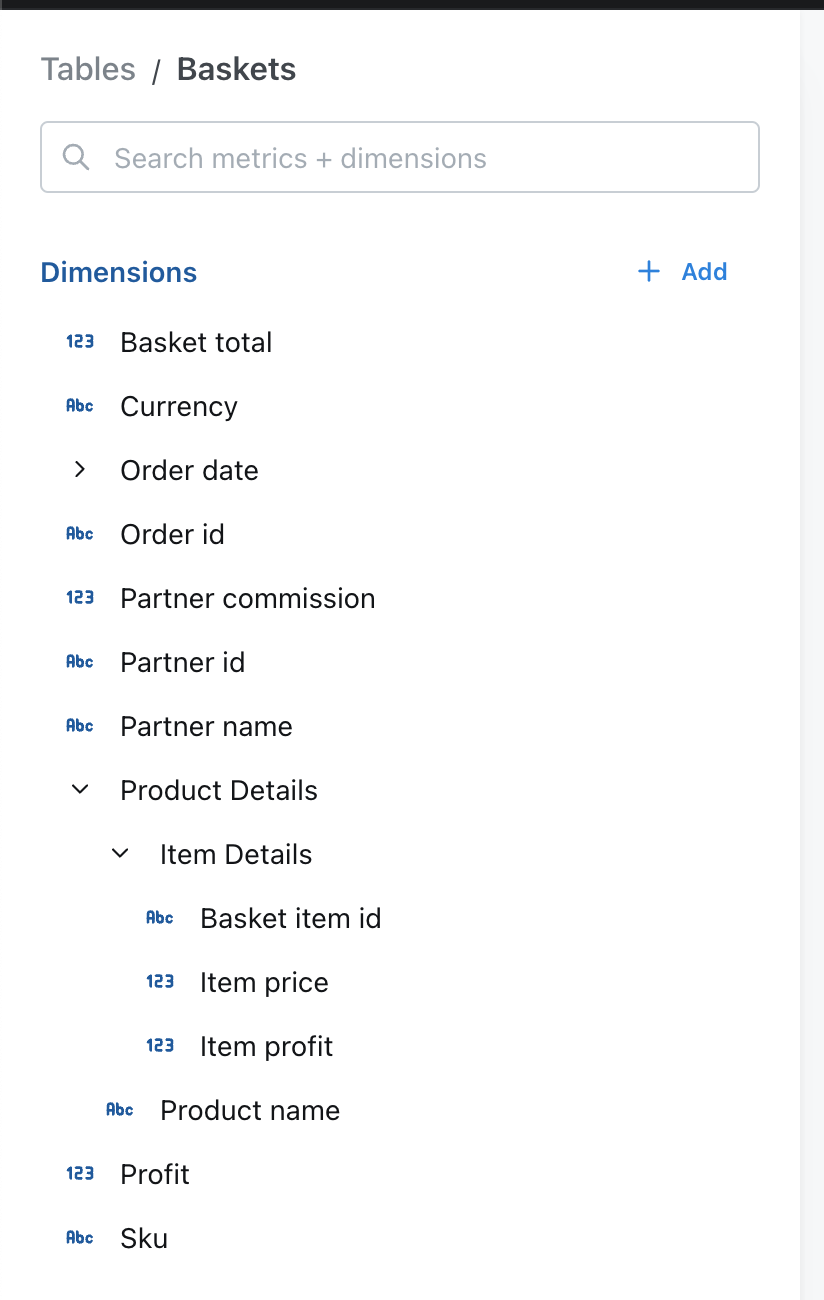
You can group your dimensions and metrics in the sidebar using thegroups parameter.
To do this, you need to set up group_details in the model’s configuration. Then, you can use these groups to organize metrics and dimensions. You can create nested groups up to 3 levels.
- dbt v1.9 and earlier
- dbt v1.10+ and Fusion
- Lightdash YAML
URLs
Lightdash users can interact with dimension values by clicking on them. If you’re already storing URLs in your models, you can create hyperlinks to those URLs in Lightdash, like so:- dbt v1.9 and earlier
- dbt v1.10+ and Fusion
- Lightdash YAML
How to add custom URLs
By adding custom urls you can configure the actions available to your users. Like linking to external tools, or taking actions in other tools.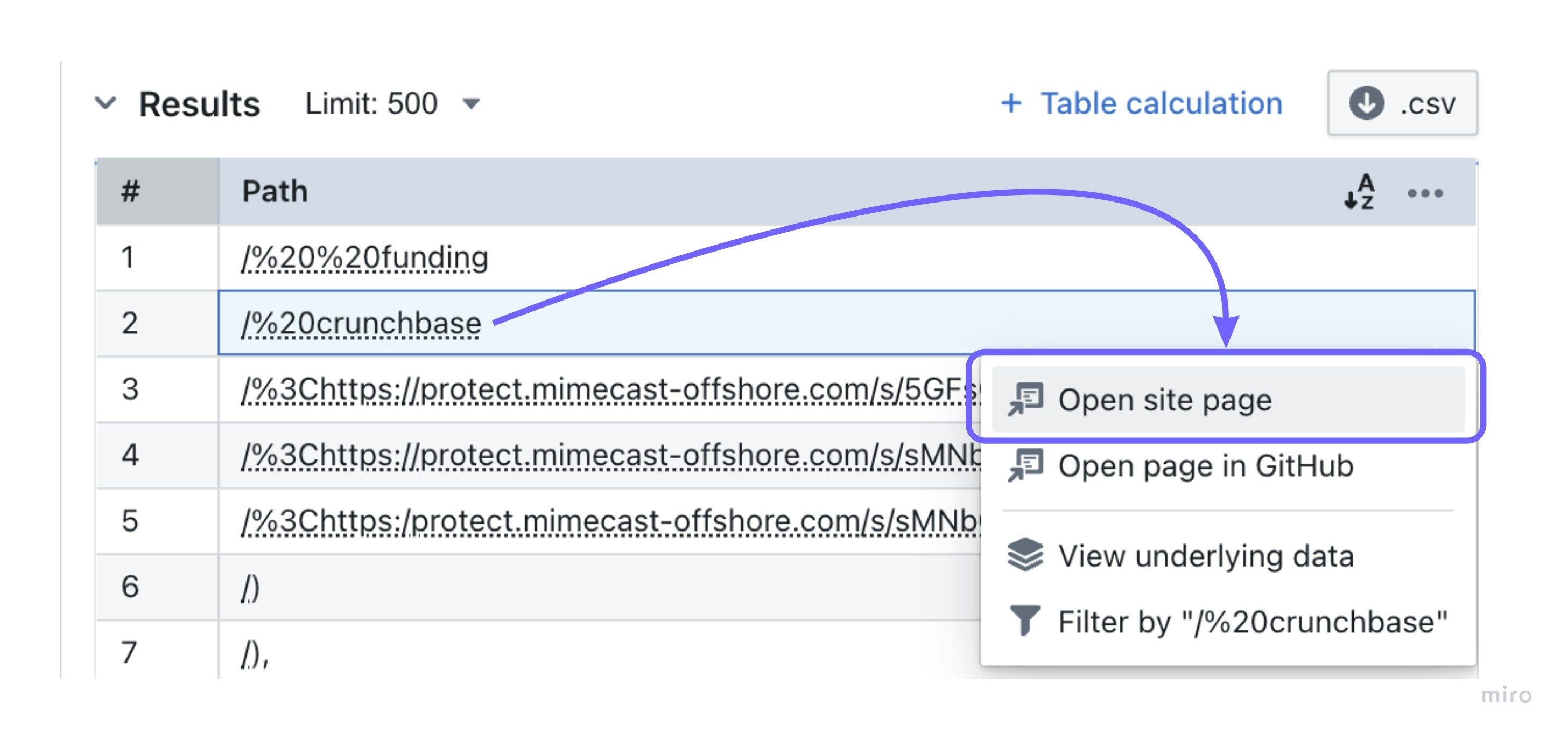
- dbt v1.9 and earlier
- dbt v1.10+ and Fusion
- Lightdash YAML
${ value.formatted } will be replaced with the value of the company name in the Lightdash UI at query run time. The ${ row.company.company_id.raw } will be replaced with the value of the company id in the Lightdash UI at query run time. The action will be disabled if the column “company_id” from table “company” is not part of the query.
You can reference values from other columns in your URLs
You can reference another dimension from your table in your URL. For these URLs to work, the other column you’ve referenced needs to be included in your results table. For example, say I’ve added a URL tocompany_name and it uses the field customer_id:
- dbt v1.9 and earlier
- dbt v1.10+ and Fusion
- Lightdash YAML
customer_id included in my results table.
Liquid templating
Use templates to configure values dynamically at runtime based on query results. Available liquid tags| Tag | Description |
|---|---|
${ value.formatted } | The exact value of the dimension as seen in the Lightdash UI. For example $1,427.20 |
${ value.raw } | The raw value of the dimension returned from the underlying SQL query. For example 1427.2 |
${ row.table_name.column_name.formatted } | The exact value of the column as seen in the Lightdash UI. For example $1,427.20 |
${ row.table_name.column_name.raw } | The raw value of the dimension returned from the underlying SQL query. For example 1427.2 |
-
url_encode: Encode a string as URL safe, for example it replaces spaces with%20. -
downcase: Convert a string to lowercase. -
append: Append one string to another.
Rich text
TherichText property allows you to define custom HTML/Markdown templates for displaying dimension and metric values in table cells. This enables sophisticated data presentation with formatting, styling, conditional logic, and external integrations.
Rich text only affects UI display in table cells. It has no impact on value formatting, CSV exports, or the underlying data values.
Basic example
Display a dimension value with custom formatting:- dbt v1.9 and earlier
- dbt v1.10+ and Fusion
- Lightdash YAML
Conditional formatting
Use Liquid control flow tags for conditional display based on values:- dbt v1.9 and earlier
- dbt v1.10+ and Fusion
- Lightdash YAML
Liquid templating in rich text
Use templates to configure values dynamically at runtime based on query results. Available liquid tags| Tag | Description |
|---|---|
${ value.formatted } | The exact value of the dimension as seen in the Lightdash UI. For example $1,427.20 |
${ value.raw } | The raw value of the dimension returned from the underlying SQL query. For example 1427.2 |
${ row.table_name.column_name.formatted } | The exact value of the column as seen in the Lightdash UI. For example $1,427.20 |
${ row.table_name.column_name.raw } | The raw value of the dimension returned from the underlying SQL query. For example 1427.2 |
-
url_encode: Encode a string as URL safe, for example it replaces spaces with%20. -
downcase: Convert a string to lowercase. -
append: Append one string to another.
Required attributes
Lightdash can useuser attributes to limit some dimensions to some users.
In the example below, only users with is_admin attribute true can use the salary dimension on user table. Users without access to this dimension will not see it or the custom metrics created from this dimension on the explore page.
- dbt v1.9 and earlier
- dbt v1.10+ and Fusion
- Lightdash YAML
Forbidden error.
Any attributes
Whilerequired_attributes uses AND logic (all conditions must match), any_attributes uses OR logic — a user only needs to match at least one condition.
- dbt v1.9 and earlier
- dbt v1.10+ and Fusion
- Lightdash YAML
department = "hr" OR department = "finance" OR role = "manager" can see the salary dimension.
You can combine both required_attributes and any_attributes on the same dimension. When both are set, both checks must pass. See user attributes for details.
Current limitations
Lightdash dimensions and custom metrics are protected by this feature, however, it is possible to write custom SQL to bypass this filter, for example:- Developers and admins running SQL queries on SQL runner.
- Custom SQL or subqueries on
table calculations
Scheduler deliveries will run against the user who created the scheduled delivery, be careful when sharing required attributes with other users.
Color
You can predefine colors for your string type dimensions, these colors will be used instead of your default organization colors for the right value when you use a grouped bar chart or a pie chart.- dbt v1.9 and earlier
- dbt v1.10+ and Fusion
- Lightdash YAML
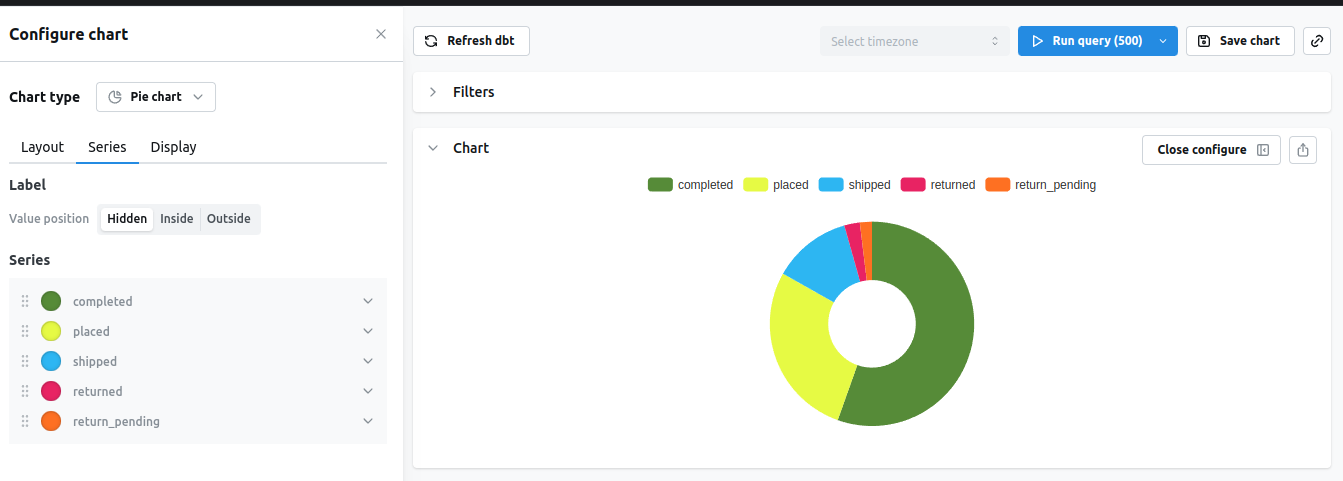
We recommend using #HEX colors, other color types like rgba,rgba or color name (eg: orange) are also supported on charts, but they are not yet supported on the chart config.
You can manually override these dimension colors by going into the chart config and manually picking a color for that serie.These colors will also take precedence over the organization color palette.
Case sensitive
You can control whether string filters on a dimension are case sensitive or case insensitive. By default, all string filters are case sensitive (case_sensitive: true). When set to false, string filters will ignore case differences when matching values.
This setting affects the following filter operators: equals, not equals, starts with, and ends with.
- dbt v1.9 and earlier
- dbt v1.10+ and Fusion
- Lightdash YAML
case_sensitive: false, filtering for “john” would match “John”, “JOHN”, “john”, etc.
Dimension-level
case_sensitive settings override explore-level and project-level settings. See Tables reference for explore-level configuration and lightdash.config.yml reference for project-level defaults.Image Display
You can configure dimensions to display images in table cells using URL templates. Images are rendered as thumbnails with hover tooltips showing larger previews, perfect for visualizing product images, user avatars, or any other image-based data.How it works
To display images, you define animage property with a URL template in your dimension or additional dimension configuration. The URL can be dynamic, using LiquidJS templating to construct URLs based on row data and field values.
Simplest example - column already contains image URLs:
If your column already contains complete image URLs, you can simply configure it to display as an image:
- dbt v1.9 and earlier
- dbt v1.10+ and Fusion
- Lightdash YAML
- dbt v1.9 and earlier
- dbt v1.10+ and Fusion
- Lightdash YAML
- dbt v1.9 and earlier
- dbt v1.10+ and Fusion
- Lightdash YAML
- dbt v1.9 and earlier
- dbt v1.10+ and Fusion
- Lightdash YAML
Display behavior
- Thumbnails: Images display as thumbnails in table cells (default: 32px height)
- Hover preview: Hovering over a thumbnail reveals a larger preview via tooltip
- Error handling: Failed image loads show a photo-off icon with error details in the tooltip
- Validation: Invalid URL syntax is caught and displays an error state
Image configuration properties
Theimage object supports the following properties:
| Property | Type | Default | Description |
|---|---|---|---|
url | string | (required) | The image URL. Supports LiquidJS templating with ${value.raw}, ${row.table.column.raw}, etc. |
width | number | auto | Image width in pixels. When specified without height, height defaults to ‘auto’ to maintain aspect ratio. |
height | number | 32 | Image height in pixels. |
fit | string | ”cover” | Controls how the image fits within the dimensions. Options: "cover", "contain", "fill", or "none". |
cover(default) - Image fills the space while maintaining aspect ratio. May crop content.contain- Scales image to fit within dimensions while preserving aspect ratio. No cropping.fill- Stretches image to fill dimensions. May distort aspect ratio.none- Displays image at its original size without scaling.
URL Templating
Theimage.url property supports LiquidJS templating with the same tags and filters available for dimension URLs:
Available liquid tags:
| Tag | Description |
|---|---|
${ value.formatted } | The exact value of the dimension as seen in the Lightdash UI |
${ value.raw } | The raw value of the dimension returned from the underlying SQL query |
${ row.table_name.column_name.formatted } | The exact value of another column as seen in the Lightdash UI |
${ row.table_name.column_name.raw } | The raw value of another dimension returned from the underlying SQL query |
Current limitations
- Dimensions only: Image display is currently supported for dimensions and additional dimensions only (not metrics or table calculations)
- Referenced columns: When using
${ row.table_name.column_name }templates, the referenced column must be included in your results table for the image to display
Example: Product catalog with images
- dbt v1.9 and earlier
- dbt v1.10+ and Fusion
- Lightdash YAML
Using special characters or capital letters in your column names
If you use special characters on your column names, you might get errors when using those columns on explore. For example, having a column namedStatus with capital S on a table named orders in postgres throws the following error:
sql meta tag on dimensions
- dbt v1.9 and earlier
- dbt v1.10+ and Fusion
- Lightdash YAML
Status columns on the SQL query
Additional dimensions
Additional dimensions let you define multiple dimensions off of a single column from your dbt model. This is useful when adding different formatting to a column, comparing or combining columns, parsing JSON columns, or creating persisted groups/buckets based off of a column. A “normal” dimension is a column created in your .sql file in dbt that is written to your data warehouse. An additional dimension is not included in your dbt .sql file, so it’s not written to your data warehouse. When used in Lightdash, it just adds the dimension definition to your SQL query (so it’s “created” at runtime). All dimension configurations are available for additional dimensions. You can also use additional dimensions when defining metrics.Additional dimensions names need to be unique in the model.
Adding different formatting
- dbt v1.9 and earlier
- dbt v1.10+ and Fusion
- Lightdash YAML
Comparing or combining columns
When defining additional dimensions, you can reference other dimensions, even from joined tables (organizations is a joined table in the example below).
- dbt v1.9 and earlier
- dbt v1.10+ and Fusion
- Lightdash YAML
Parsing JSON columns
Usually you’ll want to addhidden:true for the main JSON dimension since raw JSON is not useful in charts.
- dbt v1.9 and earlier
- dbt v1.10+ and Fusion
- Lightdash YAML
Adding multiple timezones for the same dimension
You can use additional dimensions to convert a timestamp into multiple timezones:- dbt v1.9 and earlier
- dbt v1.10+ and Fusion
- Lightdash YAML
Using additional dimensions in metrics
To define metrics based on additional dimensions, you need to add them to the model’s meta metrics, or use custom SQL in defining them under the column’s meta.- dbt v1.9 and earlier
- dbt v1.10+ and Fusion
- Lightdash YAML
Referencing time intervals in additional dimensions
You can reference time interval dimensions within additional dimensions. This is useful for creating custom logic based on specific time intervals. For example, you can create a tier based on whether a specific time interval has a value:- dbt v1.9 and earlier
- dbt v1.10+ and Fusion
- Lightdash YAML
extra_session_start_tier references ${session_start_month}, which is the MONTH time interval of the session_start dimension.